
LYRICSNOW WIKI
Spotify Sign-in & Client ID Setup
Choose your sign-in method and set up Spotify App or Client ID authorization.
Choose a sign-in method
- Spotify App on iPhone / iPad: Connect through the Spotify app installed on this device. You do not need to enter your own Client ID. Free accounts can connect, while playback and available content remain subject to Spotify's restrictions.
- Client ID: Configure your own developer app for the Web API method. This also provides the setup needed before generating dedicated Apple TV credentials. Account eligibility and API access still apply.
Option 1: Spotify App authorization on iPhone / iPad
- Install Spotify on this device and sign in.
- In LyricsNow Settings, choose Spotify as the music provider and Spotify App as the authorization method.
- Select the authorization button, finish in Spotify, then return to LyricsNow and wait for the connection.
If the connection expires, use Authorize or Reconnect. This local connection does not sign you in automatically on Mac or Apple TV.
Option 2: Client ID authorization
Screenshots show earlier interfaces. Button positions and dashboard styling may change; follow the instructions here and the current app or Spotify dashboard.
You can reuse an existing eligible Client ID after checking the redirect URI. Developer account requirements and API access can change. See Spotify's current migration guidance.
1. Open the developer dashboard
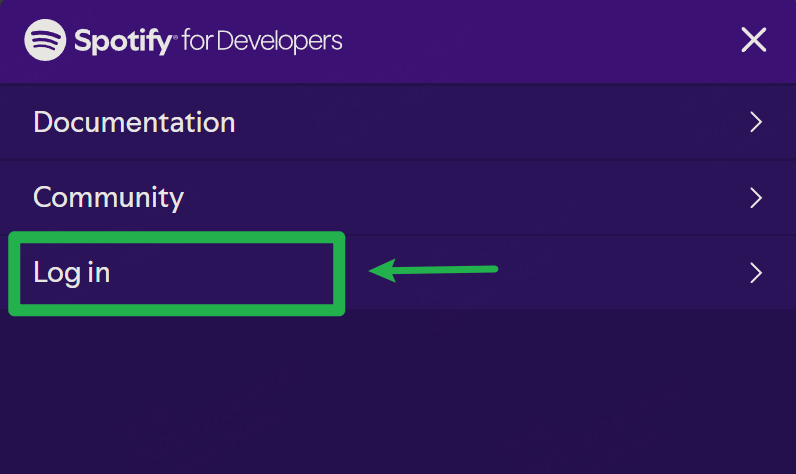
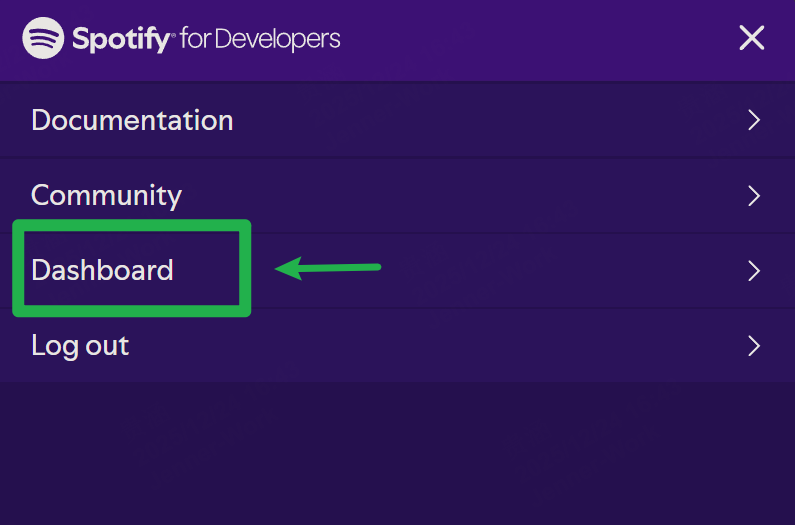
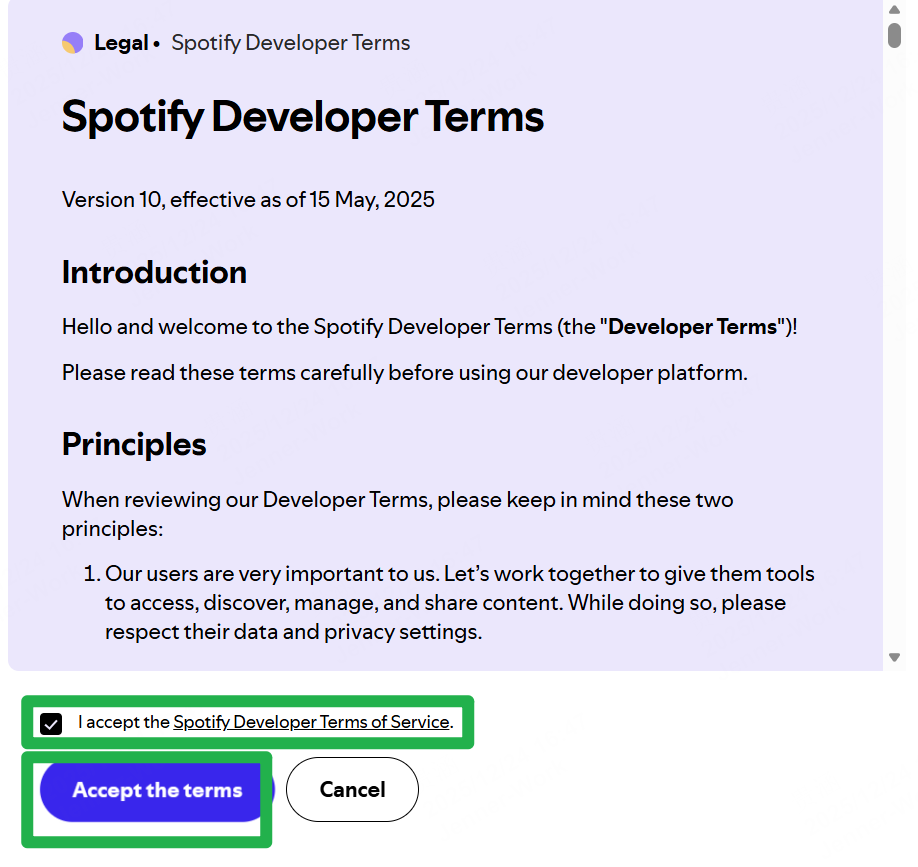
Open Spotify Developer Dashboard in a browser, sign in, and open Dashboard. Accept the developer terms if prompted.

2. Create or open an app
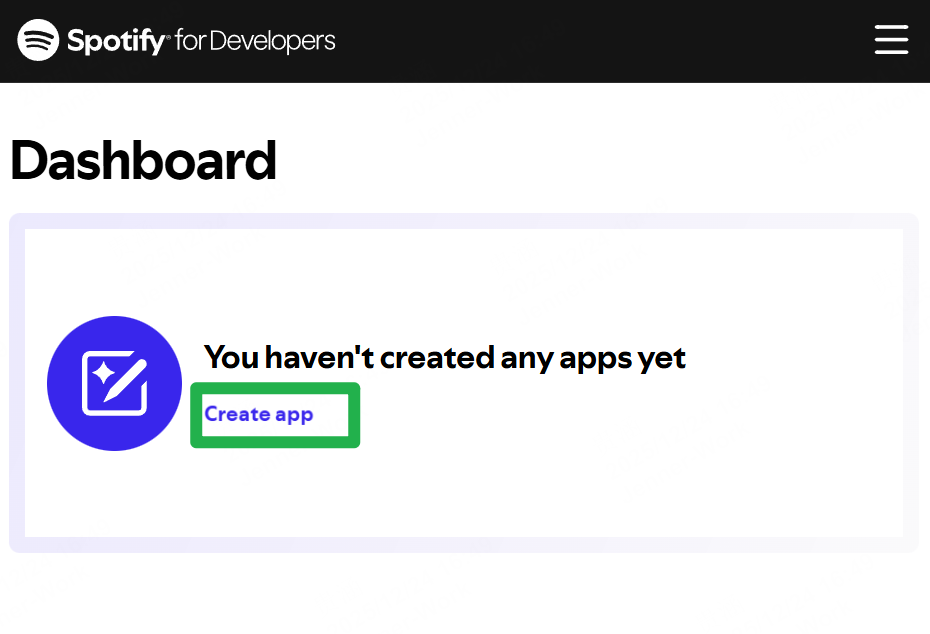
Use an existing developer app and add the LyricsNow redirect URI, or choose Create App for a new setup. Verify your email if requested. If a button is missing on mobile, try landscape orientation or a desktop browser. Account restrictions must be resolved according to Spotify's message.
3. Configure the app
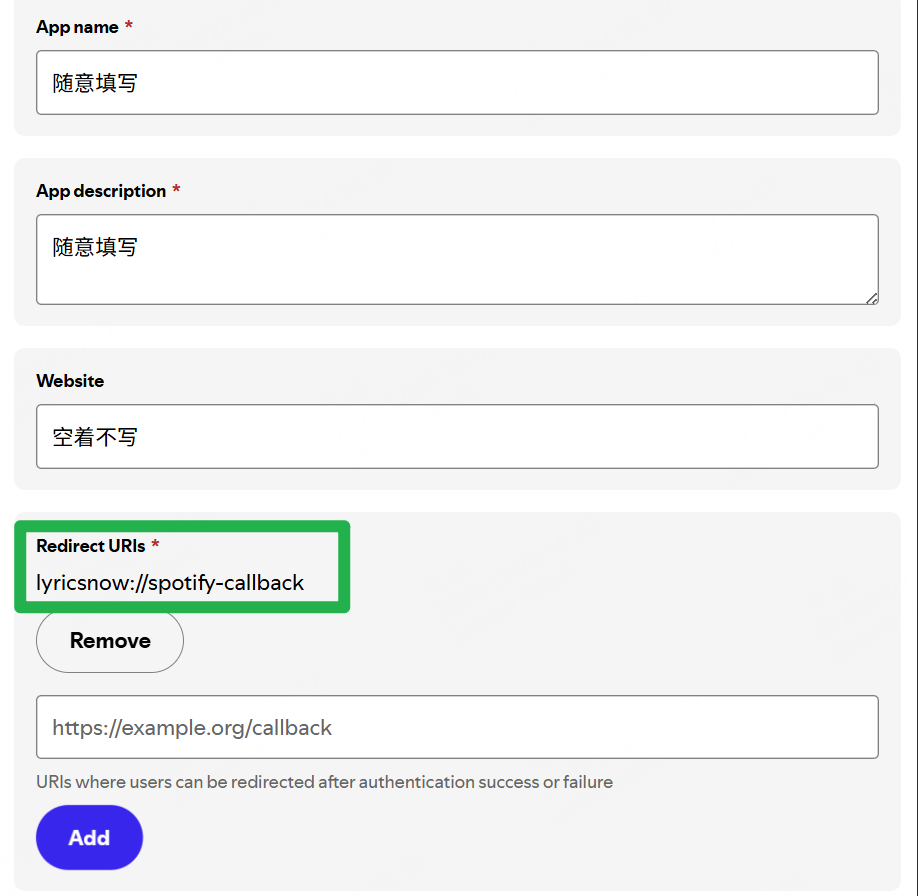
- App name / App description: Enter a name and description you can recognize.
- Website: Leave blank if the current form allows it. Complete any other required fields.
- Redirect URI: Enter
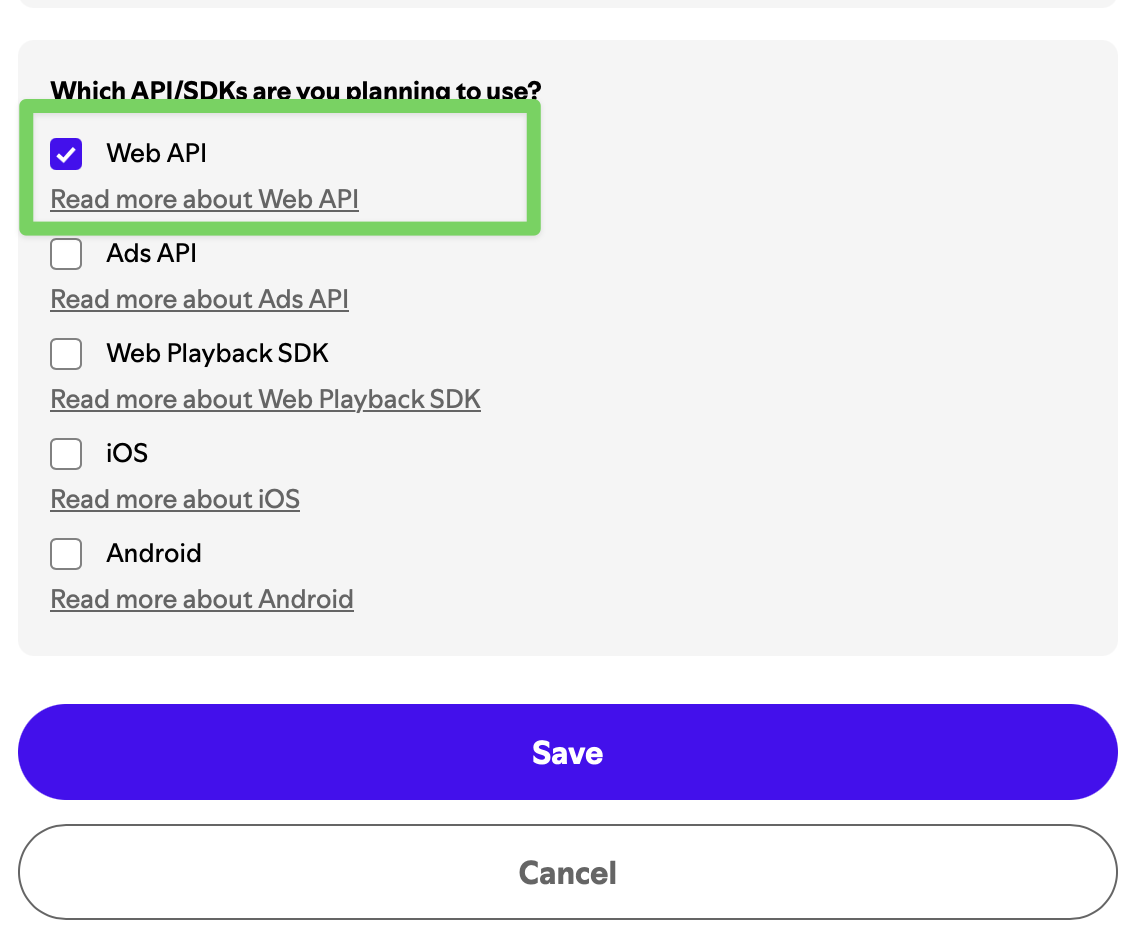
lyricsnow://spotify-callbackexactly and select Add / Save. - Select Web API where requested, accept the developer terms, and save.
4. Copy the Client ID
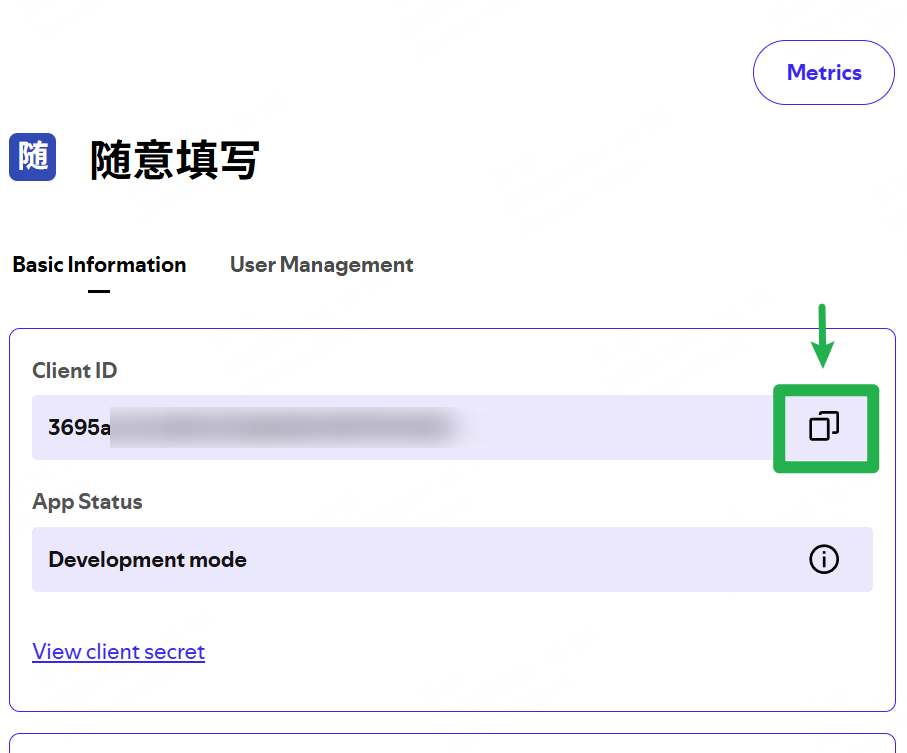
Open the app settings and copy Client ID into the Client ID authorization page in LyricsNow. Client Secret is a different field and must not be entered as the Client ID.
5. Finish authorization in LyricsNow
Complete the Spotify sign-in page, return to LyricsNow, and wait for authorization. Start playback in Spotify before checking lyrics. If sign-in succeeds but content is empty or requests return 403, check developer-app eligibility and user access, then consult the FAQ.
If you get stuck
- Missing option: Check that your device and LyricsNow version support the method.
- Redirect URI error: Check the exact value and confirm it was saved.
- Signed in but no content: Check the chosen method, account access, connection, and error message.
- Apple TV setup: Continue with Apple TV Setup.
More troubleshooting: FAQ